AI PDF Editing: What It Can Change and What Still Needs Review
A practical guide to AI PDF editing, text layers, OCR, reviewable changes and the difference between an editable PDF and a scanned image.
AI is strongest when the PDF has a real text layer
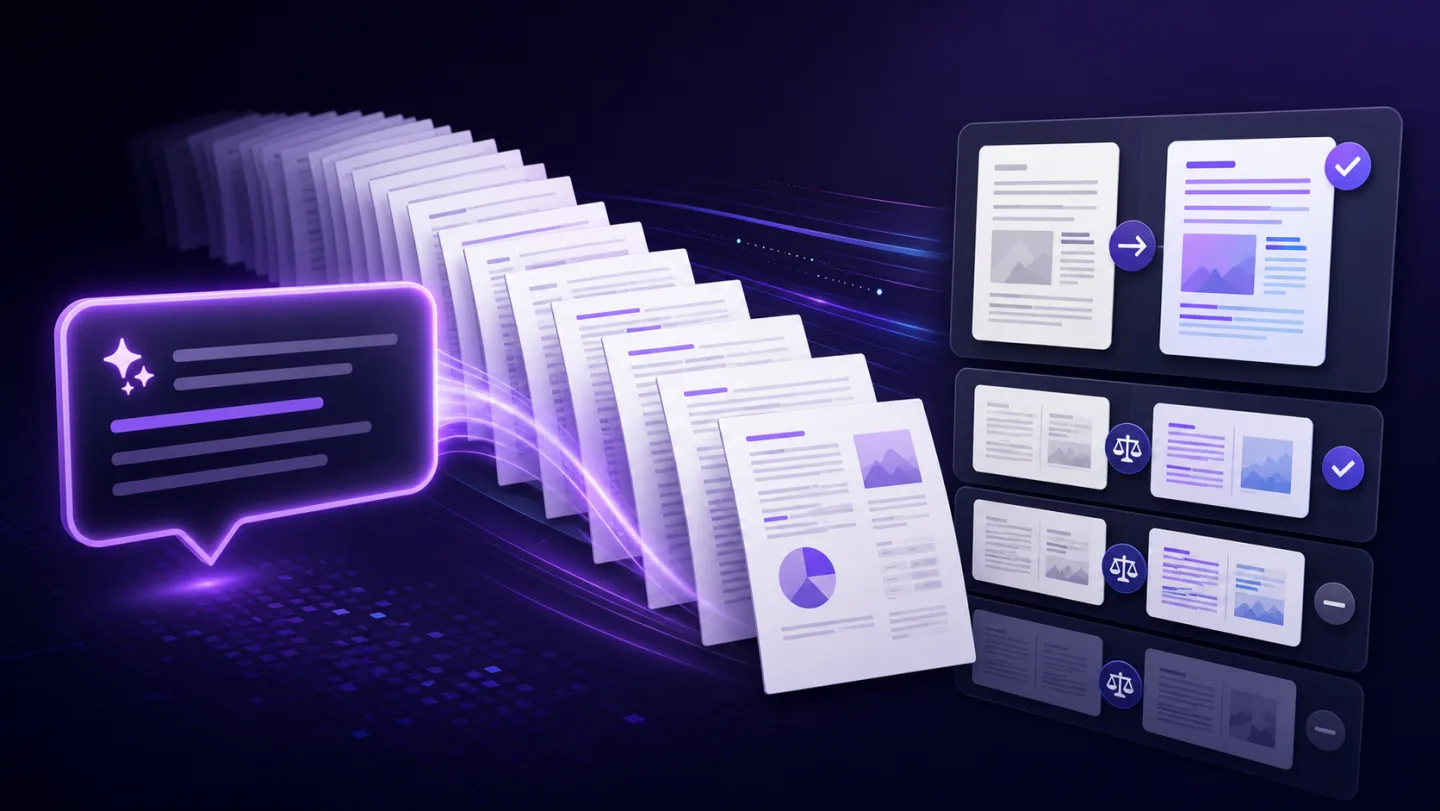
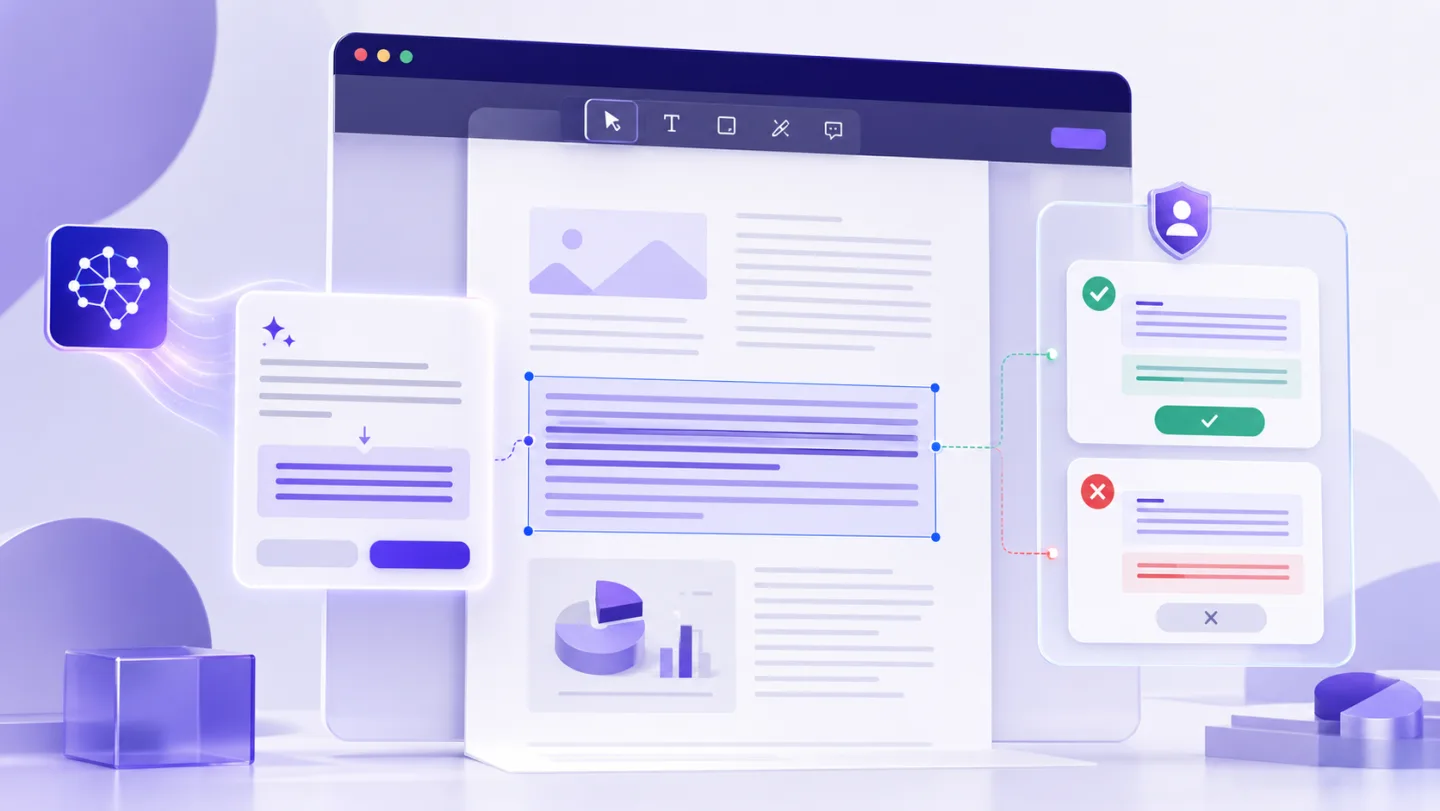
Many business PDFs contain selectable text. In these files, an editor can identify text blocks, compare a proposed replacement with the original, and place the edited result back into the document workflow.
That is very different from a scanned page. A scan is an image of text, so it needs OCR before text can be selected or changed. OCR is useful, but it can make recognition mistakes. A review step is not optional.
Use AI for outcomes, not for a blind rewrite
The most useful commands describe the result you want: replace a company name everywhere, standardise dates, translate selected text, or prepare a clearer version of an existing message.
- Ask for a specific result.
- Review the proposed blocks before applying them.
- Keep the original PDF as the reference copy.
- Export a new version after approval.
Preserve the distinction between text, images and vectors
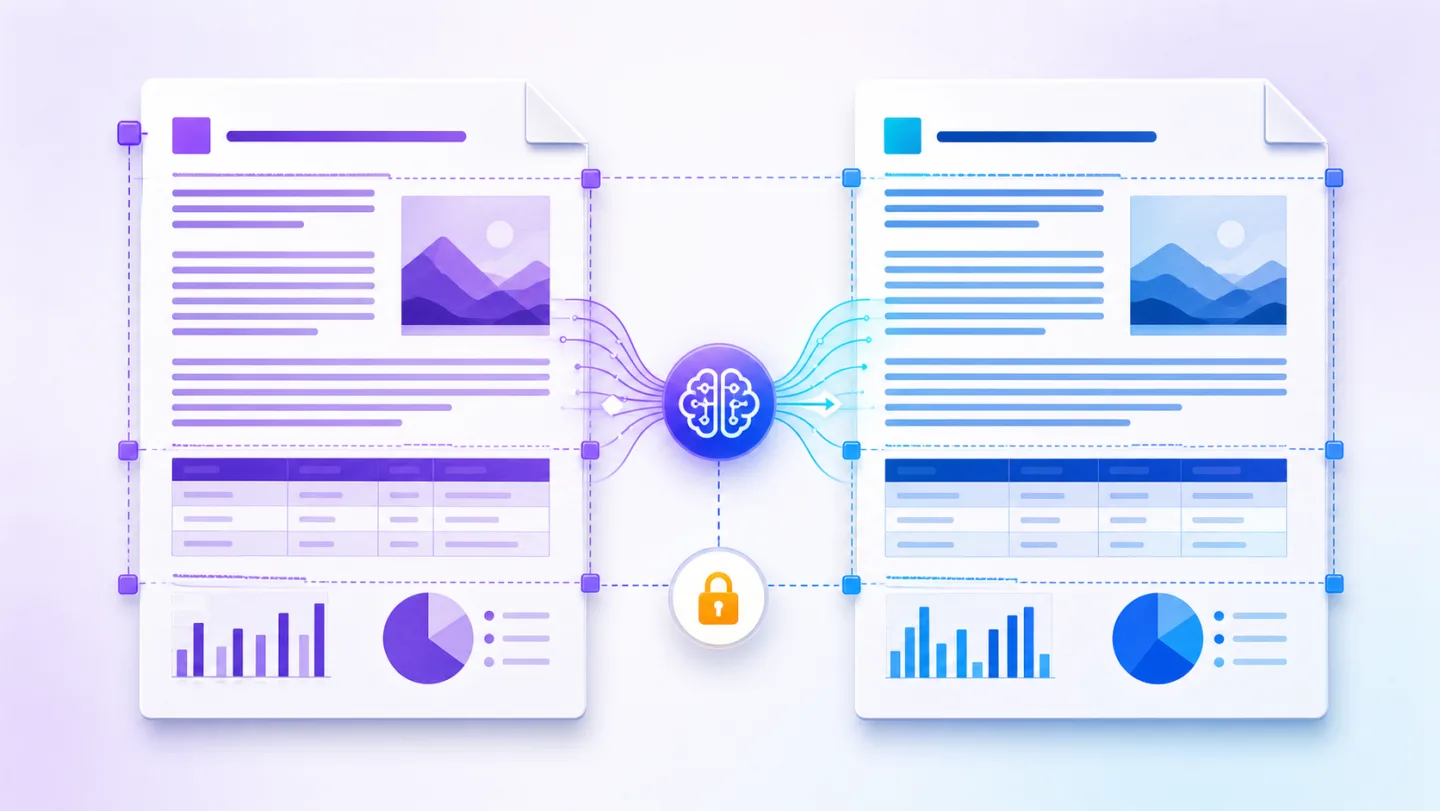
A PDF page is not one flat picture. It may contain text, raster images, vector shapes, forms and annotations. A trustworthy editor identifies which kind of object is being changed instead of claiming every mark can be edited in exactly the same way.
When AI should not make the final decision
Contracts, financial statements, regulated documents and scanned forms need human review. AI can accelerate preparation and find repetitive work, but it should not silently change facts, amounts, dates, names or legal wording.
A practical UnoPDF workflow
Open the PDF, choose the text or workflow you want to change, ask Uno for a specific outcome, review the proposed modifications, and export only when the result is correct. For scanned pages, use OCR first and verify the recognised text before making wider changes.
Open UnoPDF and start with the change you need.