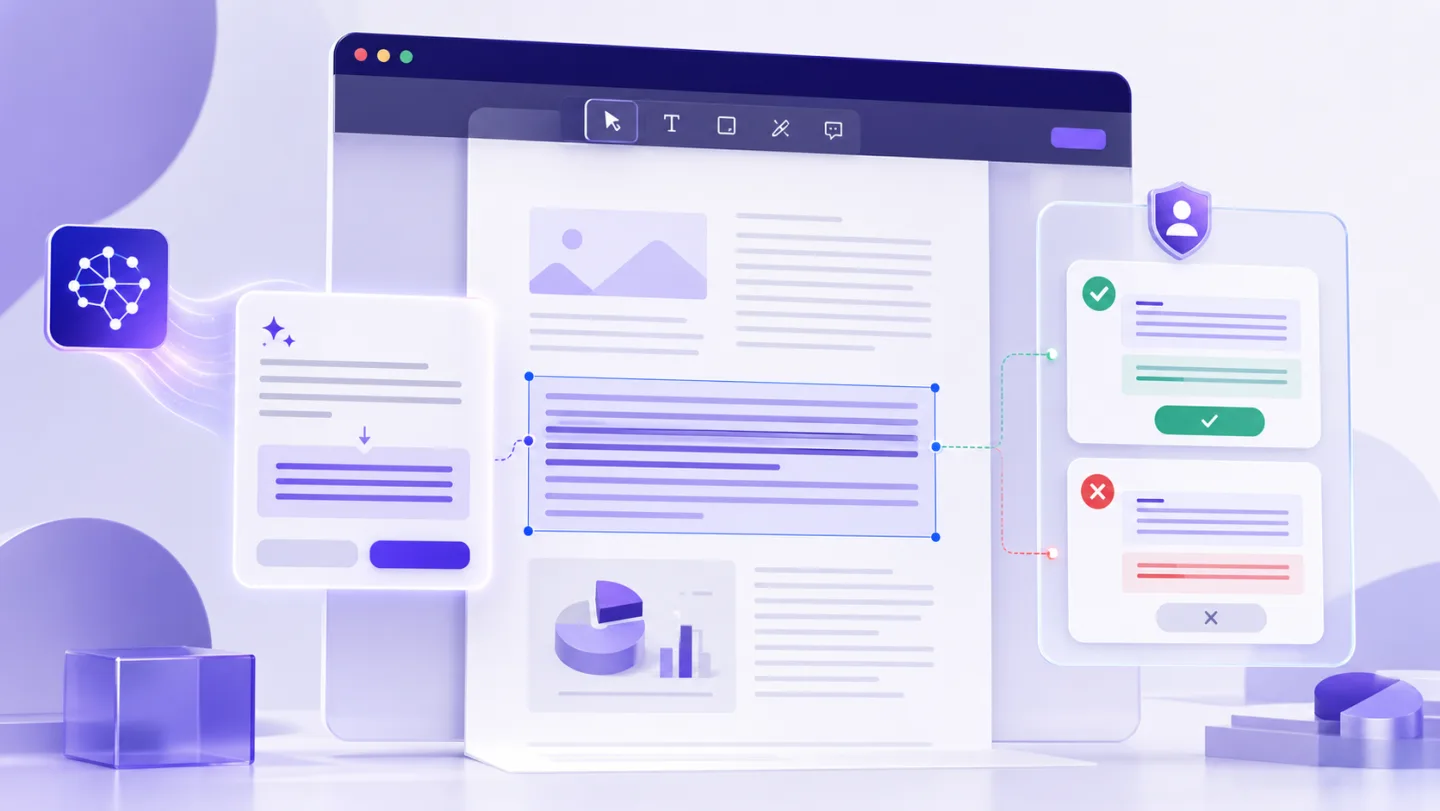
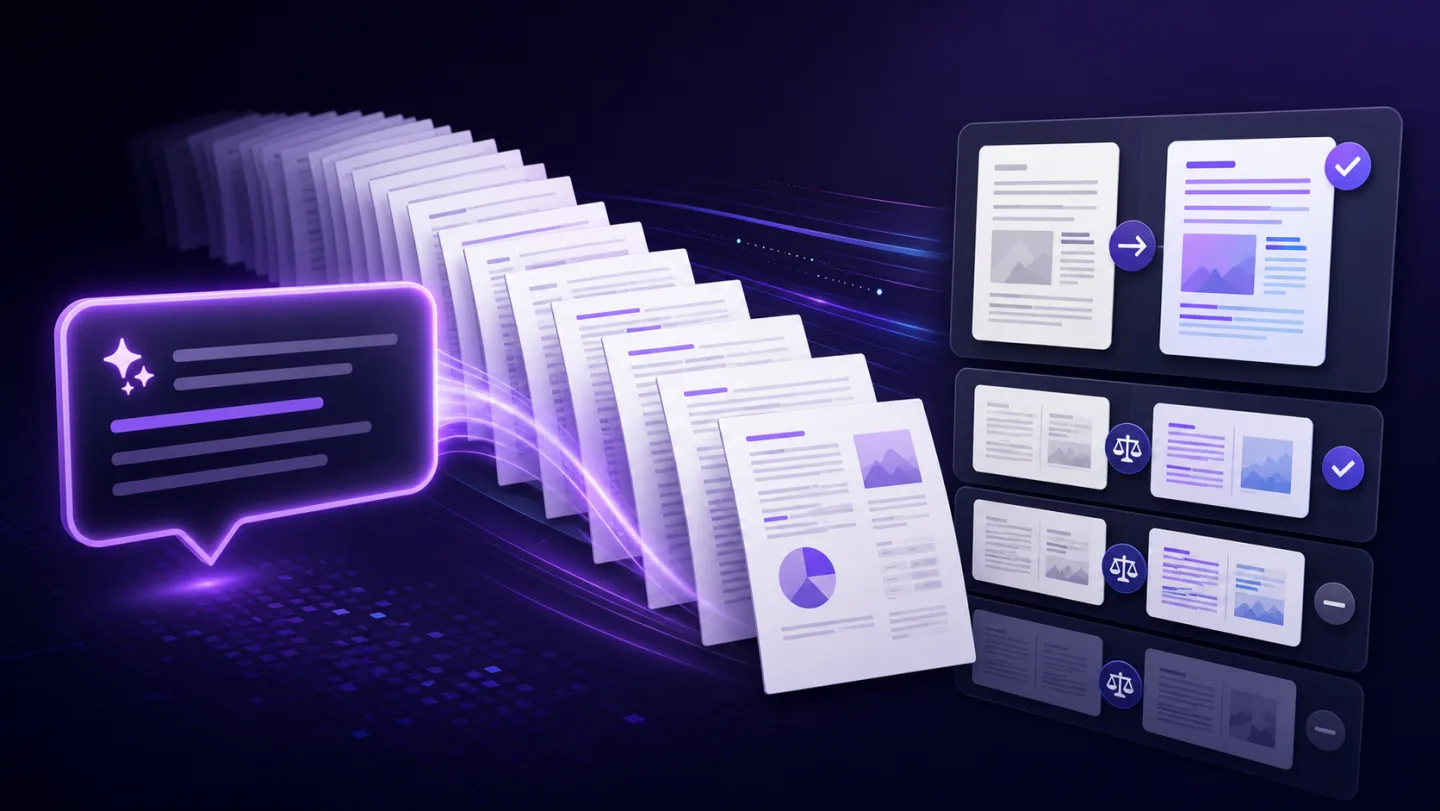
How to Translate a PDF With AI and Keep the Layout Reviewable
Translate PDF text while protecting tables, numbers, names and page geometry. Learn when OCR is needed and why layout review matters.
Why translated PDF text changes the layout
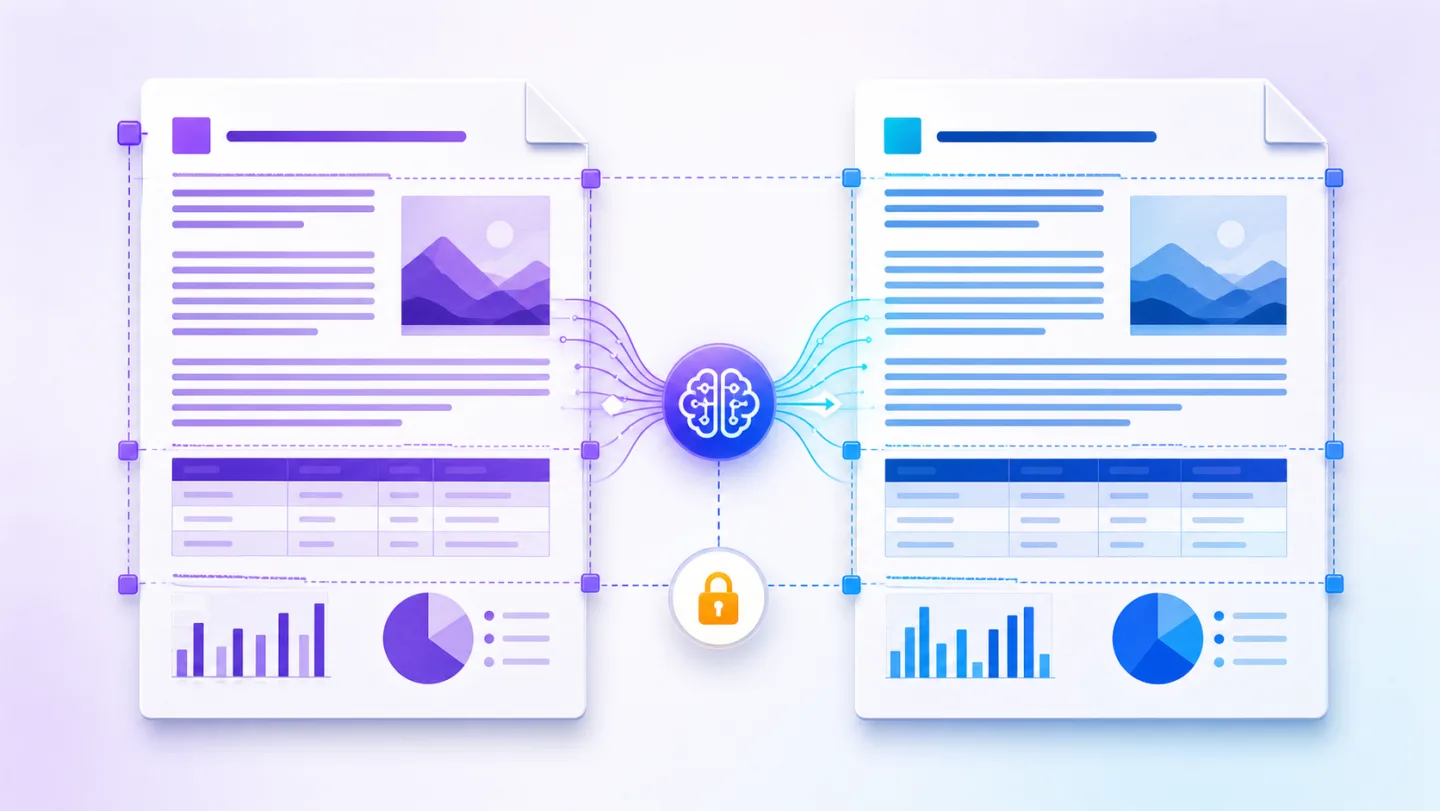
The same idea does not occupy the same width in every language. A short English label can become a much longer German phrase. A Romanian translation may need diacritics missing from the embedded font. An Arabic or Hebrew version changes text direction.
Keeping a PDF layout therefore means preserving the relationship between content and available geometry—not forcing every translation into the original width at any cost.
Choose the right translation workflow
| Workflow | Best for | What to review |
|---|---|---|
| Replace text block by block | Short business PDFs | Overflow and font support |
| Translate selected pages | Mixed-language files | Headers, footers and excluded pages |
| OCR then translate | Scanned documents | Recognition errors before translation |
| Convert to Word then translate | Major rewriting | Page reflow and table changes |
| Add bilingual text | Training and reference material | Page length and reading order |
Protect facts before asking for translation
A strong prompt separates language from data:
“Translate all body text into Romanian. Preserve names, email addresses, URLs, product codes, dates, numbers and currency values exactly. Keep each table result in its original cell. Flag any block that would overflow and show every proposed change before applying.”
That prompt reduces accidental changes, but it does not remove the need for a fluent reviewer.
A layout-aware review checklist
- Confirm that headings still fit on one line where the design requires it.
- Check table cells with long product or service descriptions.
- Verify that bullets, numbering and footnotes remain associated with the correct text.
- Inspect repeated headers and footers on every page.
- Confirm that the selected font contains all translated characters.
- Review links, email addresses, prices and measurements independently.
- Compare the exported PDF at 100% and at print size.
If the translation is too long, the responsible choices are to reduce font size within a defined range, expand the text box when space exists, rewrite more concisely with approval, or flag the block for manual redesign.
Scanned PDFs need two review stages
For a scanned document, OCR comes first. Review the recognized source text before translating it; otherwise an OCR error becomes a confident translation error.
Use this sequence:
- recognize the source language;
- correct low-confidence names and numbers;
- translate the corrected text;
- review the target language;
- check visual layout;
- export a separate version.
AI translation versus dedicated translation tools
AI is useful for context, tone and multi-step instructions. Traditional translation engines can be more predictable for repetitive segments and terminology memories. Human translation remains important for legal, medical, financial and public-facing documents.
Uno AI’s strength is the document workflow around the translation: detected text blocks, protected-value instructions and review before apply. It is not a promise that every font or complex page can be preserved automatically.
For additional context, iLovePDF publicly describes an AI translation tool that aims to retain fonts and formatting, while Adobe’s current AI Assistant focuses on a wider set of PDF actions. Product capabilities change, so verify each vendor’s current documentation before choosing a workflow.
Translate one representative page first
Start with the most complex page—the one containing a table, narrow columns or the longest paragraphs. If that page survives the workflow, the simpler pages are easier to validate.
Open UnoPDF, use a non-sensitive copy, and ask for a page-level translation before expanding the command to the whole document.
Open UnoPDF and start with the change you need.