How to Make a Scanned PDF Editable and Searchable With OCR
A practical OCR guide for scanned PDFs: detect image-only pages, choose the right language, review confidence and edit recognized text safely.
Is the PDF a scan or a text-layer document?
Try selecting one sentence. If you can highlight individual words, the page already has a text layer. If clicking selects the whole page as one image, it needs OCR. Some files are hybrid: the first pages contain real text while signed or appended pages are scans.
| Page type | What the editor sees | Best next step |
|---|---|---|
| Native text PDF | Selectable text blocks | Edit or use AI directly |
| Image-only scan | One page-sized image | Run OCR |
| Hybrid PDF | Text on some pages, scans on others | OCR only the scanned pages |
| Outlined text | Vector shapes that look like letters | OCR or return to the source file |
OCR does recognition, not reconstruction
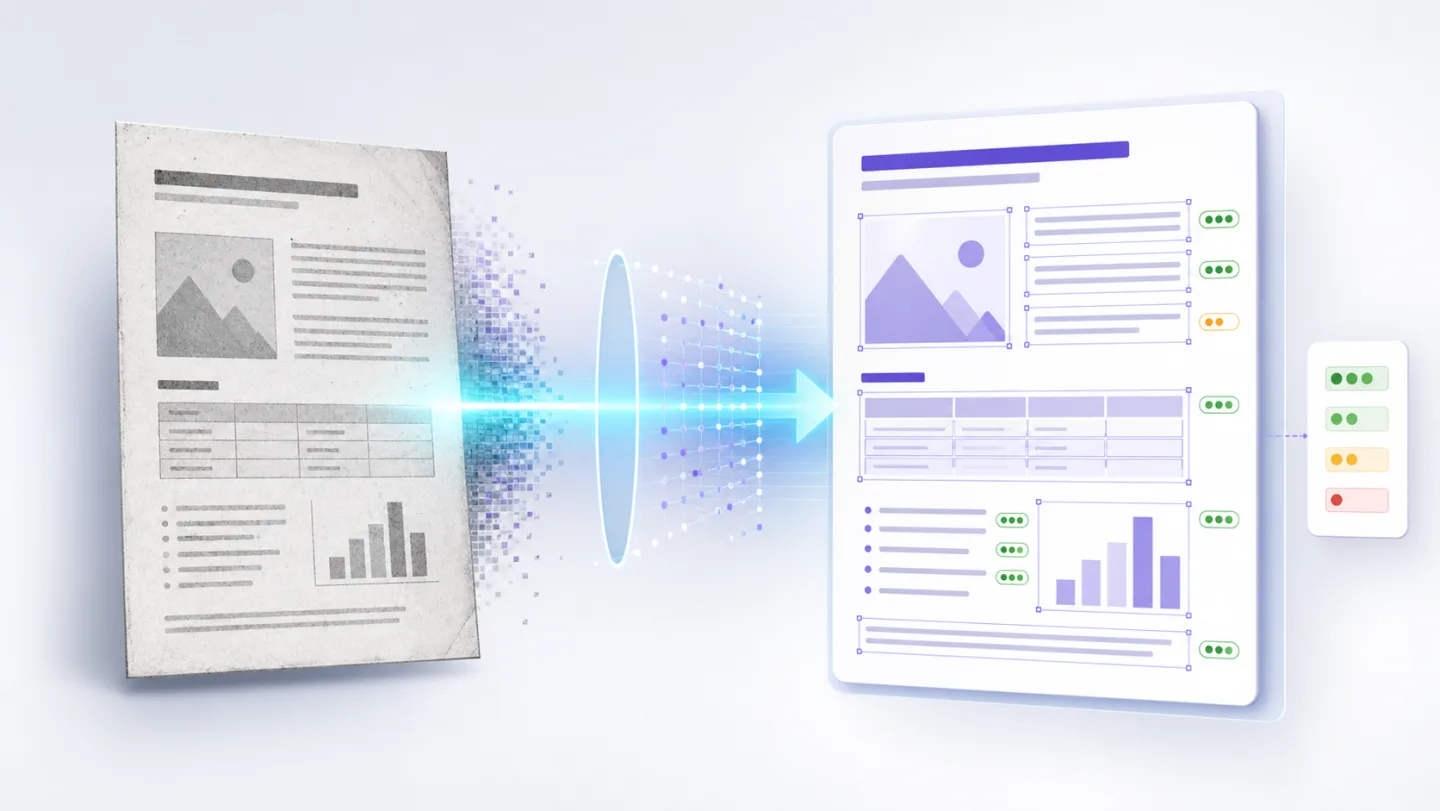
Optical character recognition predicts which characters are visible in page pixels. It does not recover the original Word document, font program or semantic table model.
Common OCR mistakes include:
0,OandD;1,Iand lowercasel;- decimal separators and thousands separators;
- accented characters;
- text crossing a stamp or signature;
- multi-column reading order;
- table rows with faint borders.
The cleaner the scan, the better the starting point. Straight pages, sufficient resolution, high contrast and the correct recognition language all help.
A review-first OCR workflow
- Keep the original scan.
- Select the document language before processing when possible.
- OCR one representative page first.
- Review names, dates, totals, identification numbers and account details.
- Search for common recognition substitutions such as
0/Oand1/l. - Edit the recognized layer only after confirming it aligns with the visible pixels.
- Export a new searchable PDF and test copy/paste from several pages.
UnoPDF provides a one-page OCR preview for the free workflow and asks for explicit image-processing consent before OCR page images are sent to the configured AI service. Full-document OCR follows the current plan limits.
Searchable does not always mean visually editable
An OCR tool can add an invisible text layer behind the scan. That makes search and copy/paste possible while the visible page remains the original image. A full editor may instead expose recognized text blocks for correction.
Both approaches are useful:
- invisible text preserves the visual scan;
- editable text supports corrections and translation;
- a side-by-side review helps catch recognition errors.
If exact visual fidelity is essential, keep the scanned image as the visible layer and use recognized text for search. If content must change, expect to review alignment and font substitution.
OCR for invoices, contracts and forms
Financial and legal documents deserve extra checks. A single mistaken decimal point can change a total, and a missed “not” can reverse meaning. OCR can accelerate data entry and discovery, but the source image remains the authority.
Adobe likewise recommends checking OCR accuracy and avoiding unnecessary edits to complex tables, graphs and images in scanned PDFs. See Adobe’s official scanned-PDF guidance.
What to do after OCR
Once the text layer is reliable, you can search the document, correct a detected block, translate selected sections or run a constrained AI command. Read AI PDF editing fundamentals before applying one prompt across many pages.
To test the page type, open your PDF in UnoPDF, choose Scan & OCR, and begin with a non-sensitive sample copy.
Open UnoPDF and start with the change you need.