How to Edit PDF Text Online Free Without Rebuilding the Document
Learn how direct PDF text editing differs from adding text on top, when OCR is required, and how to preserve the surrounding layout.
First check whether the text is really editable
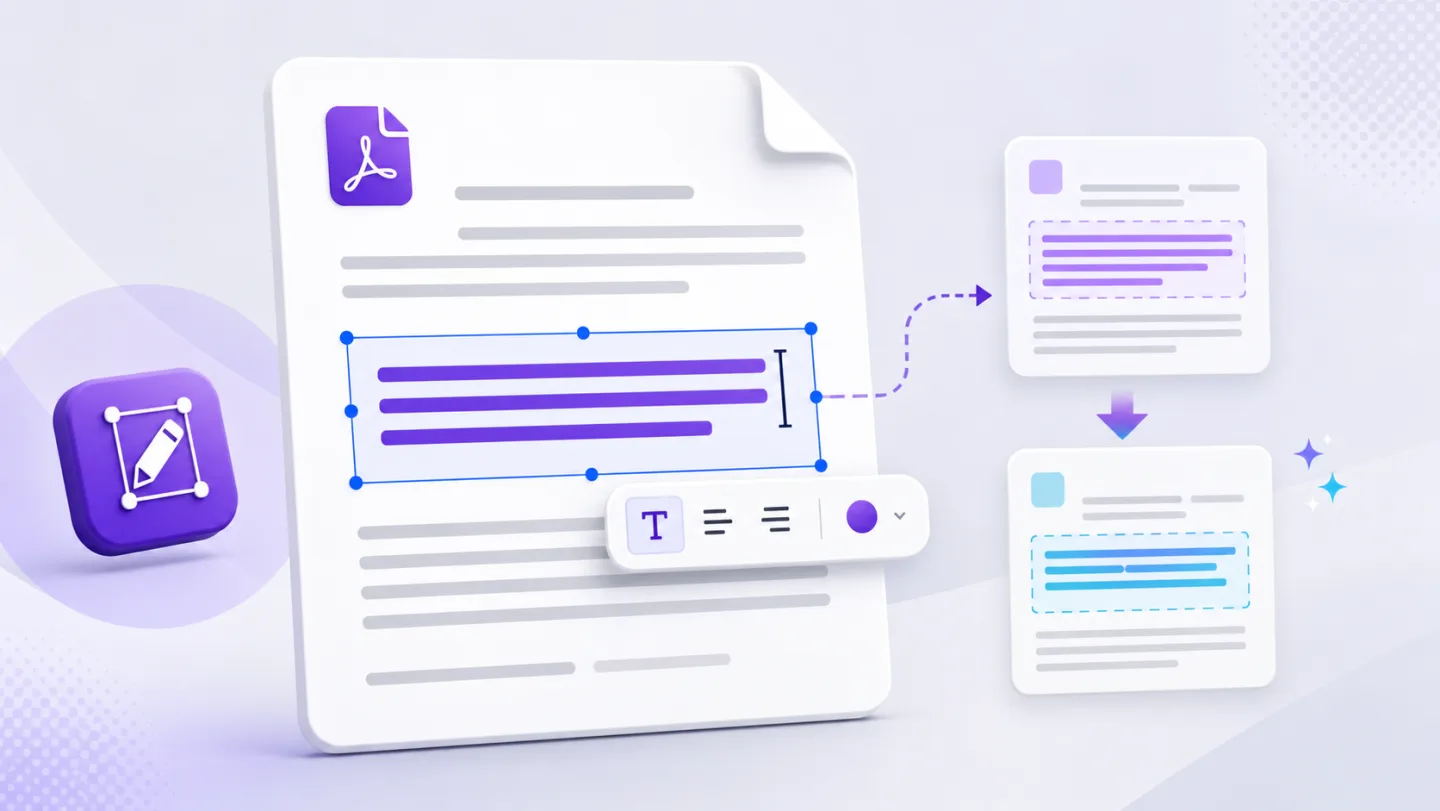
Open the PDF and try to select a word. If individual words can be selected, the file probably contains a text layer. If the entire page behaves like one photograph, it is probably a scan and needs OCR first.
There is also a third case: the page contains real text, but the characters are split into many small runs or use an embedded font that your browser cannot reproduce exactly. The words are still detectable, but changing them safely requires more care.
Direct editing, annotation and conversion are different workflows
| Method | What changes | Best for | Main risk |
|---|---|---|---|
| Edit existing PDF text | A detected original text block | Names, dates, short corrections | Font or spacing may need review |
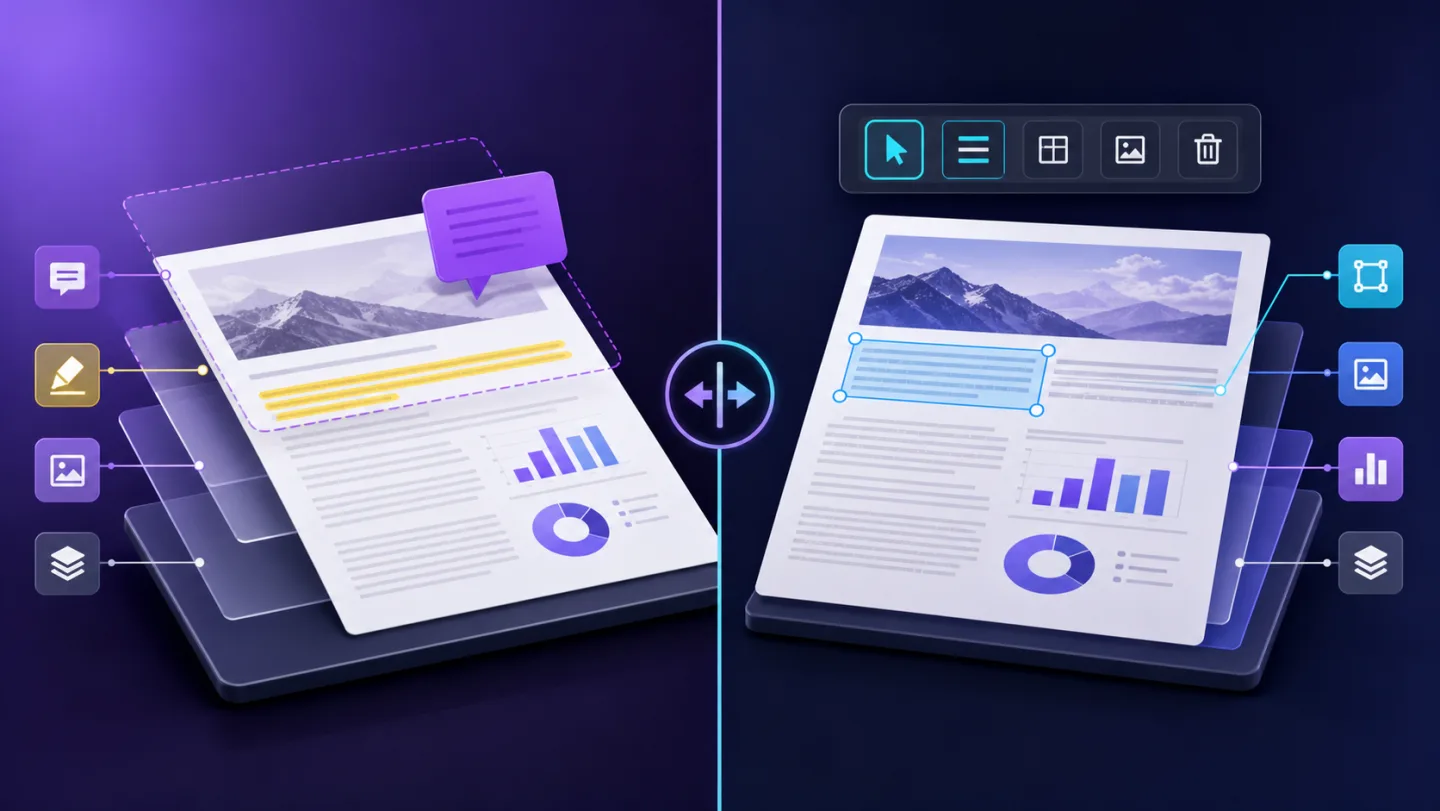
| Add a new text box | A new layer above the page | Notes, labels, form-like answers | Original text remains underneath |
| Cover and replace | A visual rectangle plus new text | A visible correction when native editing fails | It is not structural removal |
| Convert PDF to Word | The whole document becomes a flowing format | Large rewrites | Tables and page geometry can move |
| OCR a scanned page | Image pixels become recognized text | Scans and photographed pages | Recognition errors need review |
The important question is not simply “Can I type on this PDF?” It is “Am I changing the original content, or only adding a new layer?”
A layout-safe editing workflow
- Keep the original PDF unchanged as your reference.
- Select the smallest text block that contains the correction.
- Preserve the detected font family, size, weight, color and alignment when they are available.
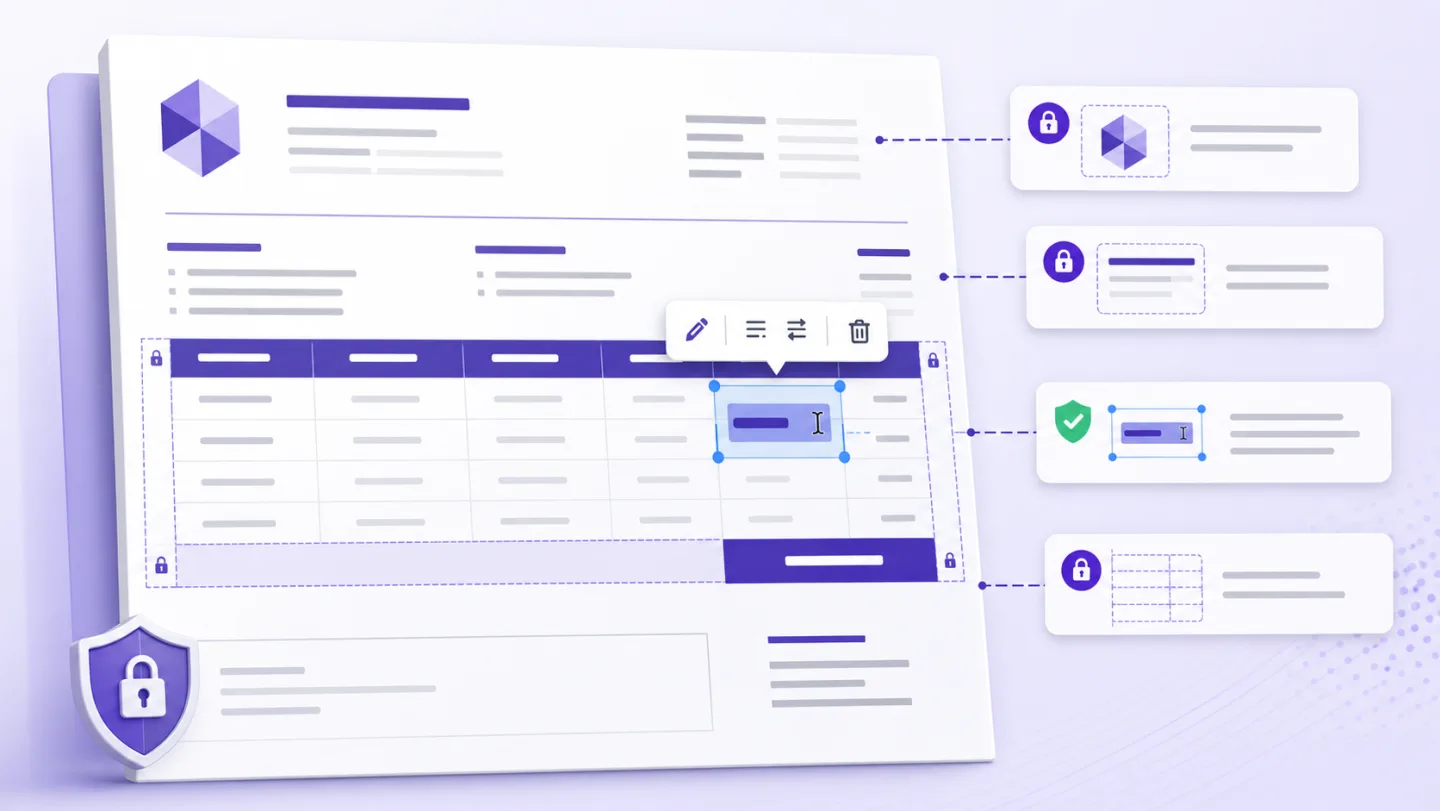
- Check the line after the edit. A longer replacement can collide with a price, table border or neighboring paragraph.
- Preview every affected page, not only the page where the edit started.
- Export a new file and reopen it before sending it.
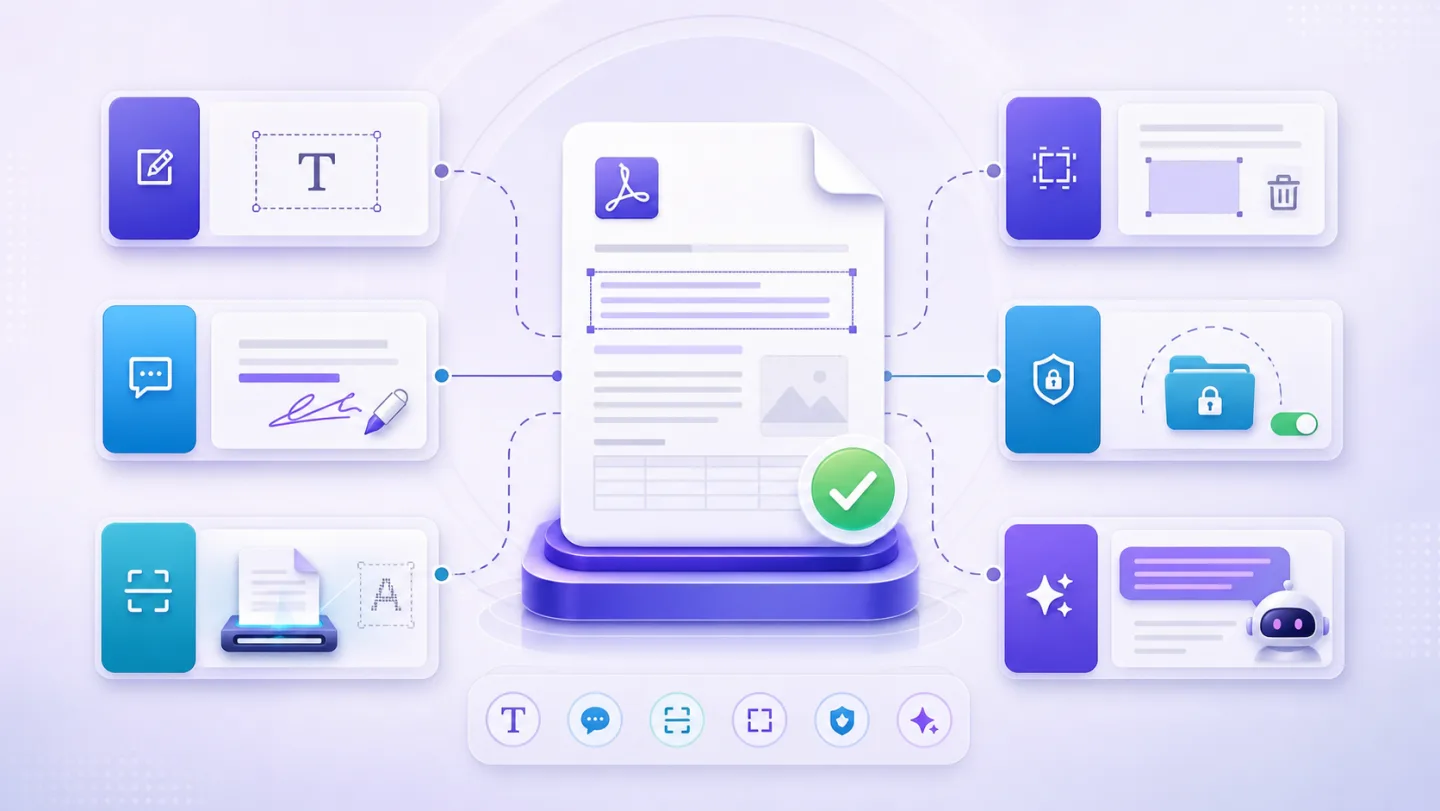
UnoPDF exposes existing text targets through Edit Text. For supported simple text blocks, its structural export path can remove the original block before drawing the approved replacement. More complex encodings deliberately use a visible fallback instead of guessing at the wrong PDF instruction.
Why fonts sometimes change
A PDF can embed only the characters used in the original document. A file may contain enough of a font to draw “June” but not enough to draw a new company name. Some PDFs also rename their font resources, subset them or convert letters into vector outlines.
That means “preserve the font” has several possible outcomes:
- reuse the actual embedded font when the required glyphs exist;
- choose a close substitute and match its width;
- preserve size, weight, color and spacing while warning that the family changed;
- refuse a risky edit and offer a visual alternative.
No editor can create missing glyphs from an incomplete font program. The honest product behavior is to make the substitution reviewable.
When AI makes the edit faster
Manual editing is best for one correction. AI becomes useful when the same outcome must be applied across many pages: replace an old company name, standardize dates, change terminology or rewrite a repeated paragraph.
A good prompt is specific: “Replace every exact occurrence of the old legal name with the new legal name. Do not change addresses, totals or unrelated text. Show me every proposed replacement before applying.”
For readable text-layer PDFs, Uno AI prepares reviewable changes rather than silently rewriting the file. Scanned documents need OCR first. See the AI prompt guide for reusable examples.
Free should describe the completed task
A useful free editor lets you open the file, make a real manual change, preview it and export without discovering a watermark at the final step. Limits may still apply to file size, daily exports, OCR or AI actions, but they should be visible before the user invests time.
Start with the free UnoPDF editor. If your change involves an invoice or table-heavy page, use the more focused invoice editing checklist.
Open UnoPDF and start with the change you need.