PDF Editor vs PDF Annotator: Why the Difference Matters
Learn whether you need to change original PDF content or add comments, highlights and text boxes above it—and choose the correct tool.

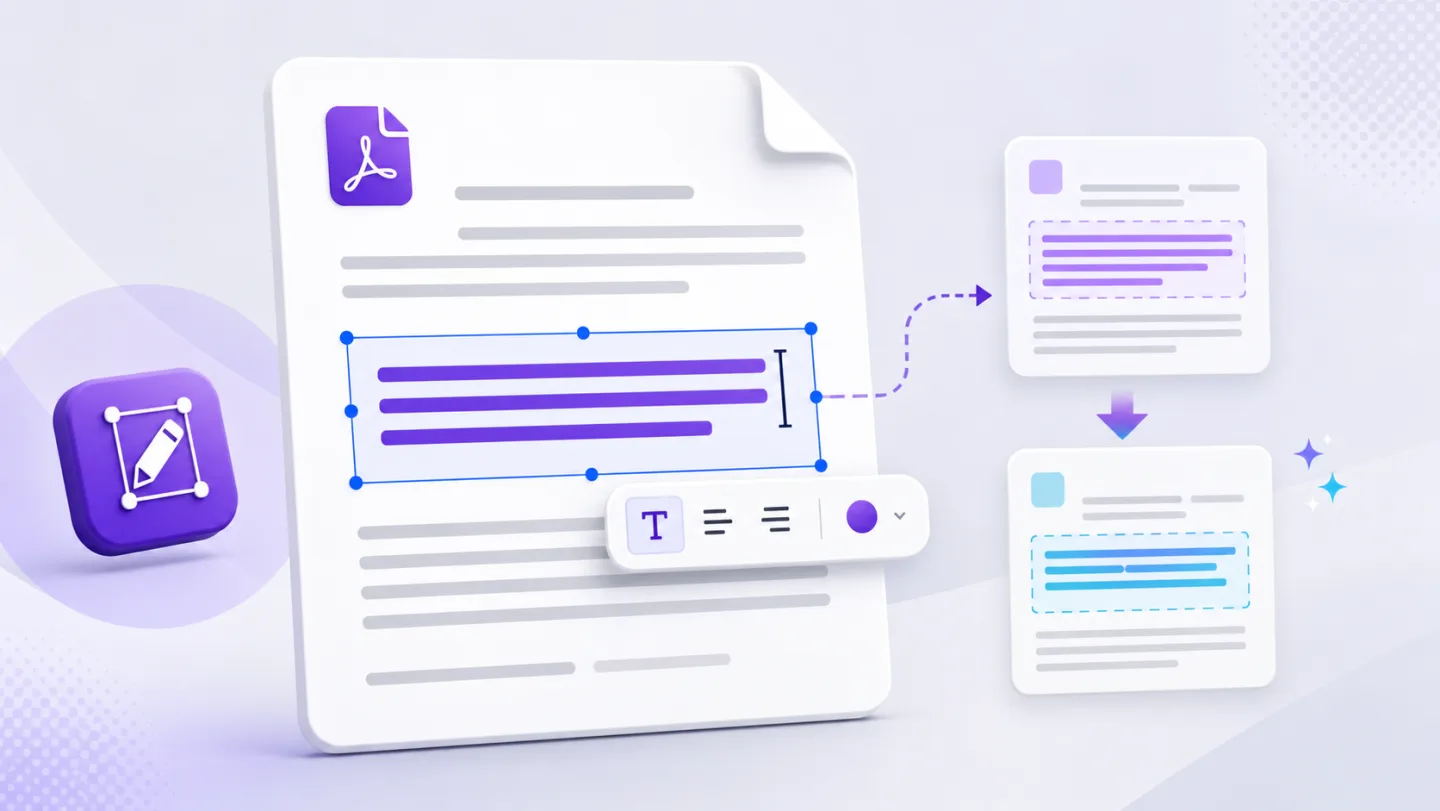
An annotator adds; an editor changes
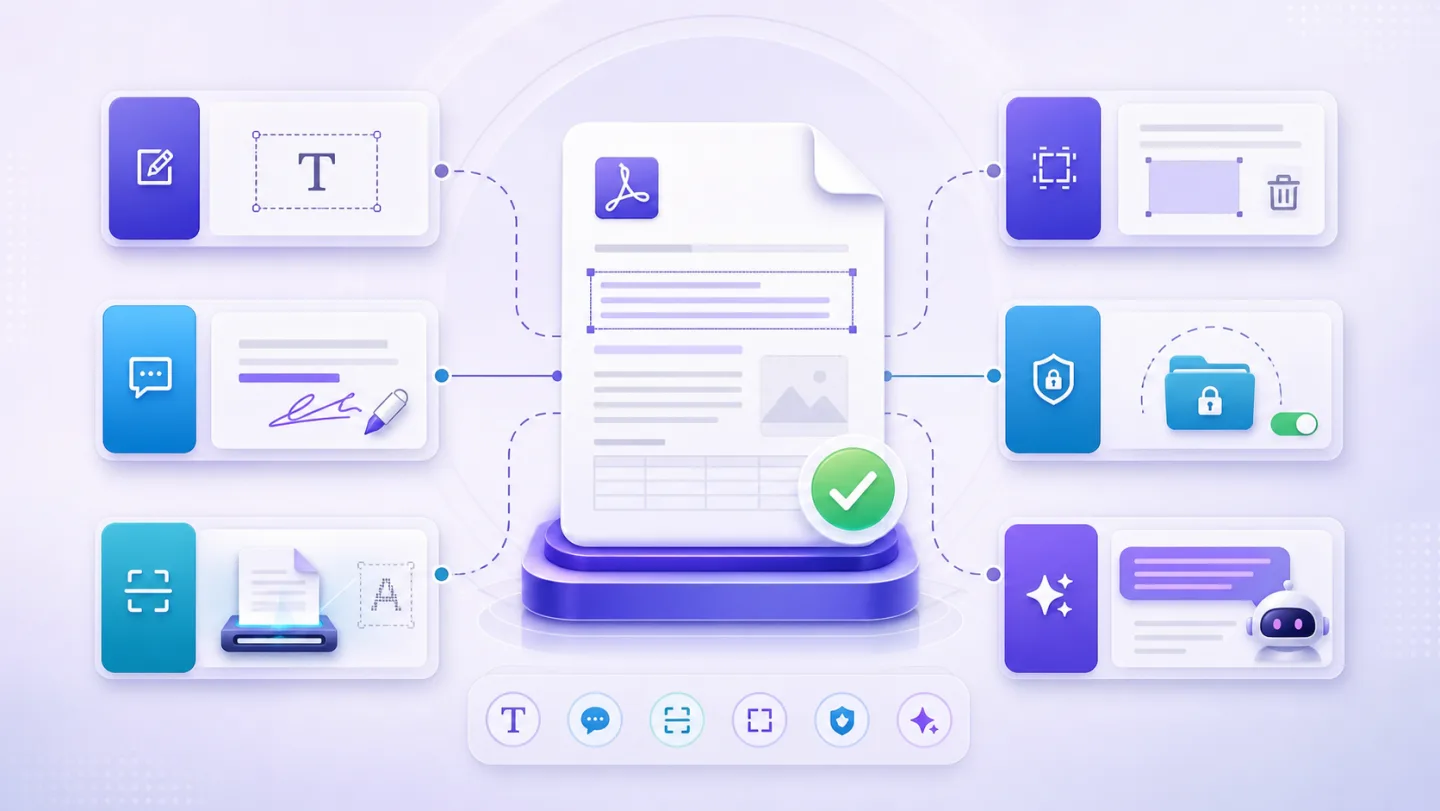
A PDF annotator adds comments, highlights, drawings, stamps, signatures or text boxes. These objects sit above the original page and are ideal for review and collaboration.
A PDF editor attempts to change content that is already in the file: an existing word, image, link, form field or page object.
| Task | Annotator | Editor |
|---|---|---|
| Highlight a sentence | Yes | Not required |
| Add a reviewer comment | Yes | Not required |
| Fill a blank area with new text | Yes | Often |
| Correct an existing name | Adds a replacement layer | Changes detected text |
| Remove an embedded logo | Can cover it | Can target the object |
| Rewrite a paragraph | Adds new content | Changes original text workflow |
Neither category is universally better. They solve different jobs.
Why many “free PDF editors” are primarily annotators
Annotation is technically safer and works on almost every visible page. The tool does not need to decode embedded fonts, identify vector objects or rewrite content streams. It can simply position a new layer at the requested coordinates.
That is enough for forms, comments, signatures and classroom markup. It is not enough when the requirement is “change the existing total label” or “remove this logo without a white rectangle.”
The visual test
After making a correction, move the new text box slightly. If the old text appears underneath, the workflow added a layer rather than changing the original content.
That does not mean the result is unusable. It means you should describe it accurately and check how it behaves on colored backgrounds, during text extraction and when another editor opens the PDF.
When annotation is the right choice
- Leave feedback without altering the source.
- Highlight clauses for a meeting.
- Add a signature or initials.
- Fill a non-interactive form.
- Draw attention to a diagram.
- Keep a visible audit trail of comments.
When direct editing is the right choice
- Correct a typo in distributed material.
- Update a repeated company name.
- Replace a date or contact detail.
- Remove an obsolete image or QR pattern.
- Translate the text layer.
- Prepare a clean final document rather than a review copy.
Where AI fits
AI can help an annotator summarize and comment. In an editor, AI can also prepare exact text replacements across many detected blocks. The second workflow has a higher burden: every proposed change must map back to the right page and original text.
UnoPDF keeps these modes separate. Manual annotation remains available for added content, while Edit Text and structural object tools operate on detected original elements. Uno AI presents changes for approval.
Choose the mode before touching the file
Ask one question: Should the recipient see my review layer, or should they receive a clean updated document?
If you are reviewing, annotate. If you are correcting the source content, edit. If the PDF structure cannot support a reliable edit, decide consciously whether a visible cover is acceptable.
Try both workflows in the free PDF editor, or continue with how to edit existing PDF text.
Open UnoPDF and start with the change you need.