How to Edit an Invoice PDF Without Breaking Tables or Totals
Safely correct invoice text while preserving table lines, vector bands, logos and numeric fields. Includes a practical validation checklist.
Treat an invoice as a business record
Only edit an invoice when you are authorized to correct it, and keep the original plus a record of what changed. A PDF editor should not be used to misrepresent a transaction, alter an amount without approval or bypass an accounting system.
For legitimate corrections, the safest source is usually the invoicing application that generated the document. Edit the underlying record and issue a corrected invoice when regulations or company policy require it.
Use direct PDF editing for controlled corrections when the source system is unavailable and your process permits it.
Why invoice layouts are fragile
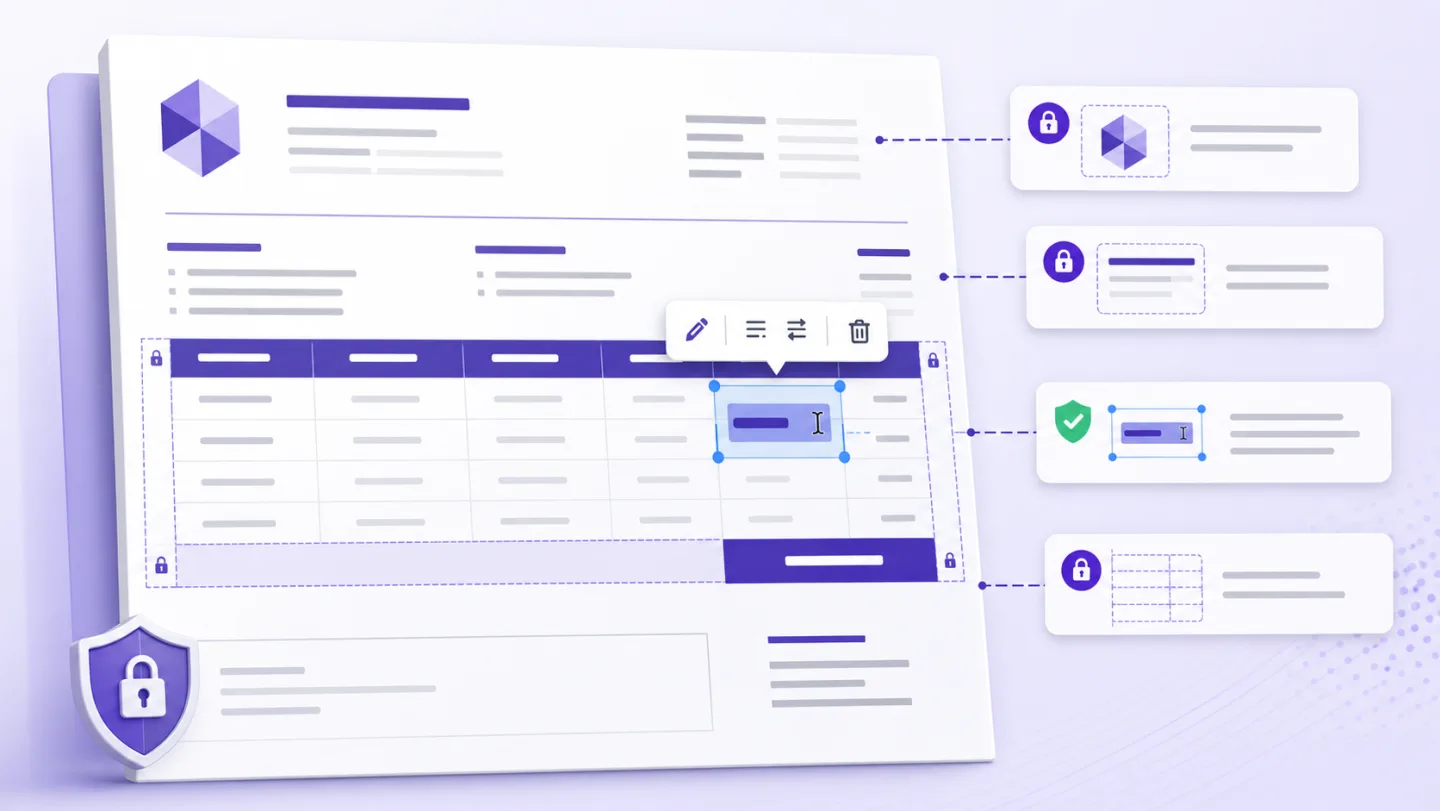
An invoice page may combine:
- selectable text for addresses and totals;
- vector lines and gray table bands;
- a raster or compound company logo;
- repeated headers inside nested PDF forms;
- embedded fonts with only a subset of characters;
- a QR payment code;
- a digital signature or certificate.
A white rectangle placed over one field can also cover a table border underneath. Removing a shared logo object can unintentionally affect every page.
Decide what kind of correction you need
| Correction | Preferred method | Main validation |
|---|---|---|
| Spelling in description | Edit detected text | Line wrapping |
| Customer address | Edit exact blocks | All address lines |
| Table label translation | Block-level translation | Cell width |
| Obsolete logo | Object-level removal/replacement | Other pages |
| QR payment code | Regenerate from authorized system | Encoded destination |
| Amount or tax | Correct in accounting source | Recalculation and audit |
Never manually “fix” totals without verifying the originating transaction and applicable tax rules.
Protect surrounding PDF objects
Select the smallest possible target. A gray band behind the total is a vector object, not part of the text. The company mark may contain both raster and vector components. If the editor outlines an area much larger than the intended object, do not delete it.
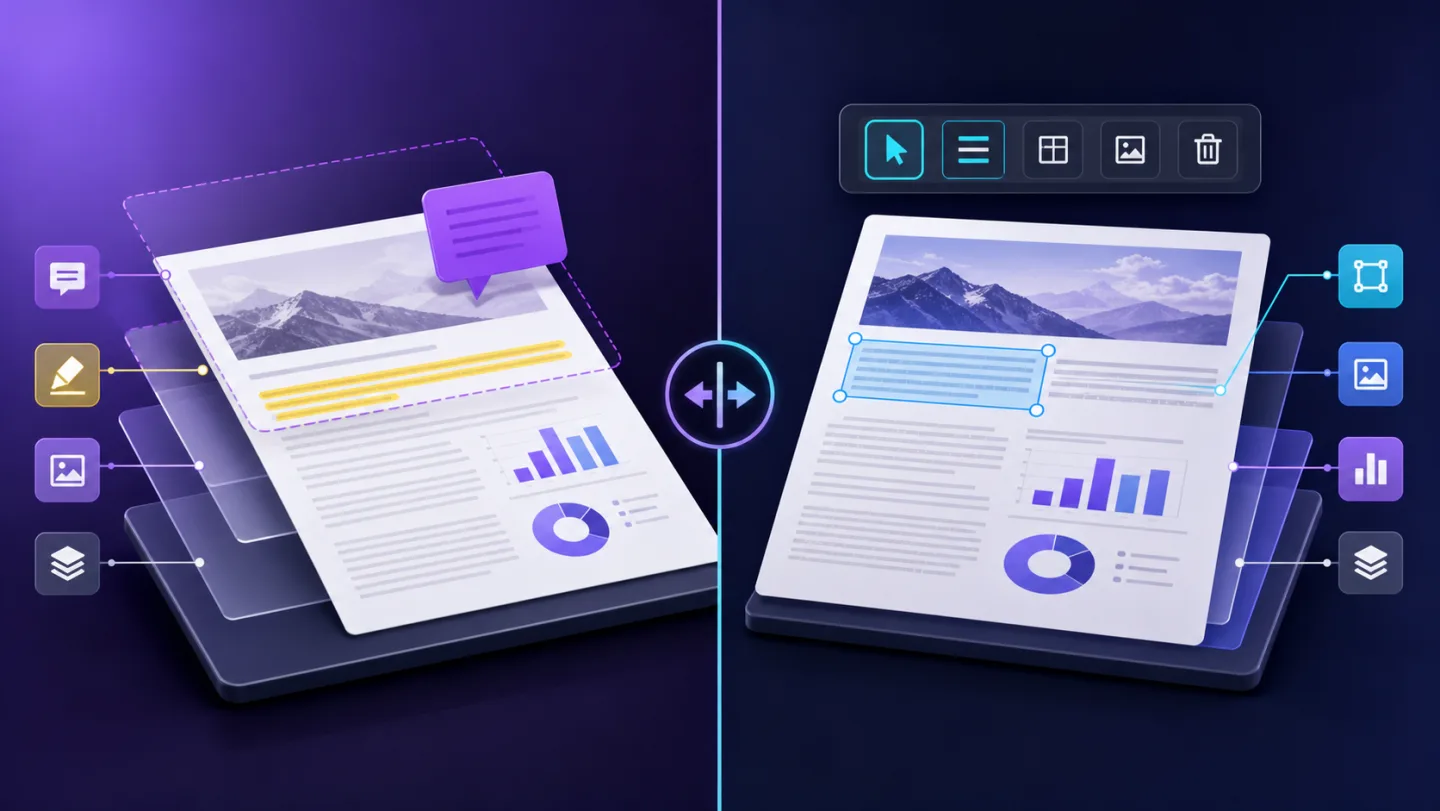
UnoPDF’s object analysis separates text, raster candidates and native vector groups on supported documents. Structural changes fail closed when the target is ambiguous rather than choosing a nearby object automatically.
Invoice correction checklist
- Duplicate the original file.
- Record the reason and authorization for the correction.
- Identify whether the target is text, image, QR pattern or vector.
- Preserve font size, weight, alignment and color.
- Check row height and table borders after longer text.
- Verify subtotal, tax and total against the source system.
- Check payment details and QR destination independently.
- Preview every page.
- Export a new filename that indicates a corrected version.
- Reopen the exported PDF and archive both versions according to policy.
AI can assist, but should not decide amounts
AI is useful for translating descriptions, standardizing product terminology or finding every occurrence of an outdated address. The prompt should explicitly protect numbers and account details:
“Translate only the item descriptions. Preserve quantities, prices, tax rates, totals, dates, invoice identifiers, account numbers and QR content exactly. Show every change before applying.”
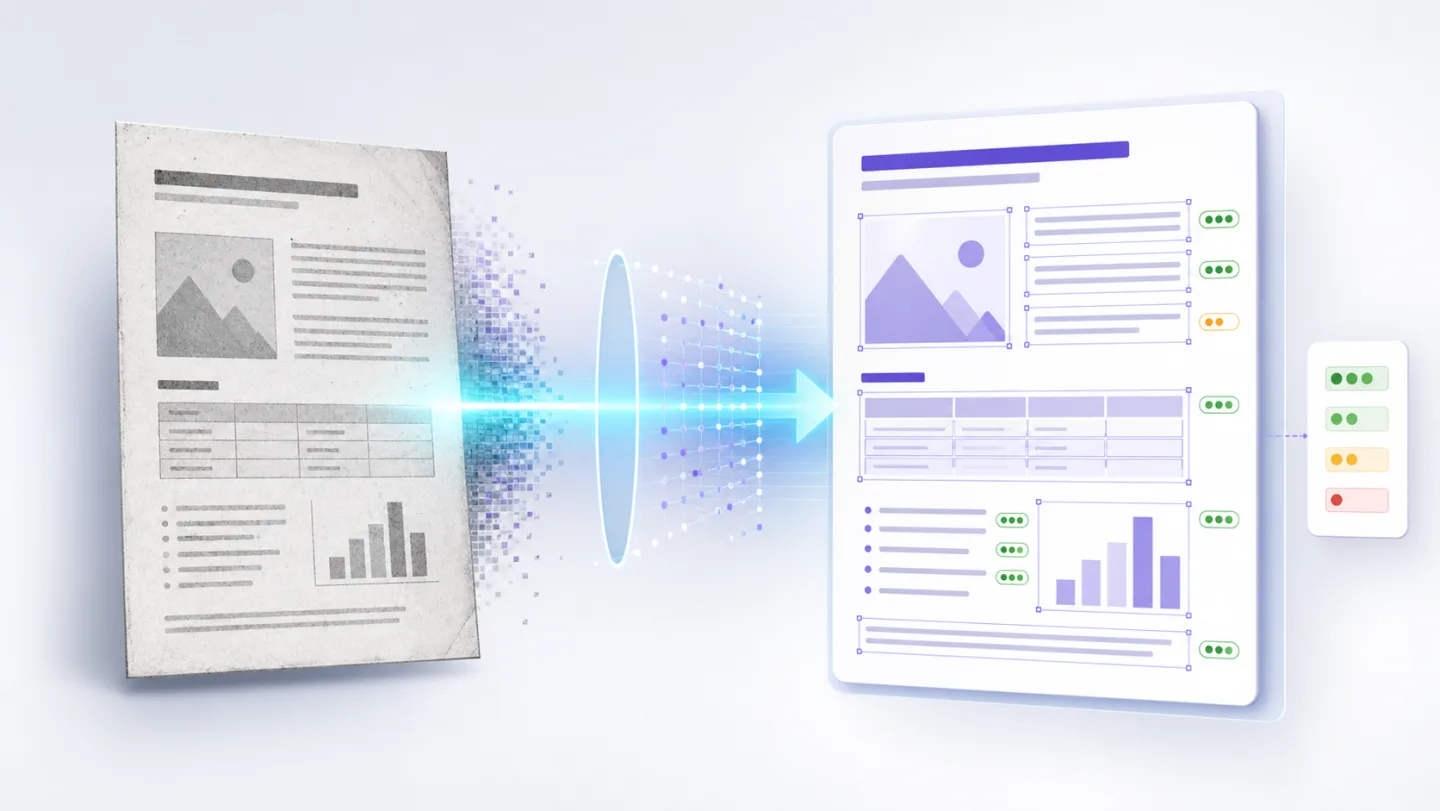
For OCR invoices, review recognition before any translation. A misread decimal separator can change the meaning of a financial value.
Test on the most complex page
Use a sanitized copy with the same table structure. Start with the page containing the logo, totals and widest description. If you can change one authorized field without affecting its band, border or neighboring value, expand the workflow carefully.
Open the UnoPDF editor or review real image and QR removal before changing compound invoice graphics.
Open UnoPDF and start with the change you need.